 Login
Login
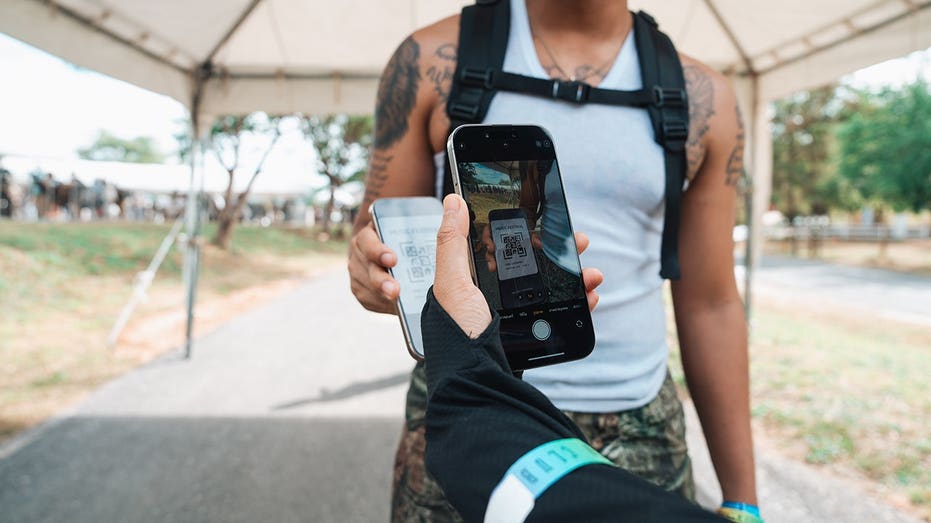
Turn membership cards into digital passes on your phone
Take a look inside your wallet. There is a good chance at least one piece of plastic in there does little more than display a barcode. Maybe it is your library card. Perhaps it is a gym membership, grocery rewards card or another card you pull out every once in a while. Until now, getting some of those cards onto an iPhone could depend on whether the organization offered its own digital pass. Apple is changing that with iOS 27.
The latest iPhone software lets you create your own pass in Apple Wallet from a physical card, photo or screenshot. Samsung Galaxy and Google Pixel owners have similar options, which means you may be able to leave a few more plastic cards at home. Here is how to turn a membership card into a digital pass on all three phones.
Join our upcoming CyberGuy LIVE class: 5 Ways to Travel Smarter and Save Money
In this free live online class, Kurt "CyberGuy" Knutsson will share five practical ways to protect your trip and your wallet this holiday travel season. You’ll learn how to secure your phone and personal information, find better travel deals, avoid common scams, save money on bookings and use technology to make your travels easier and less stressful. No technical experience is needed.
Join us Saturday, October 31, at 11 AM ET / 8 AM PT. Register free now at CyberGuyLive.com.
HOW TO SEARCH ANYTHING ON IPHONE, GALAXY AND PIXEL
What's new with Apple Wallet in iOS 27?
Apple added the ability to create your own passes in Wallet with iOS 27. This comes in handy when a membership or loyalty card has a barcode or QR code, but the organization never gave you an "Add to Apple Wallet" button. Apple specifically points to library cards and gym memberships as examples.
If you have an Apple Intelligence-compatible iPhone, you can create a pass from a photo or screenshot containing the barcode or QR code. Apple Intelligence recognizes the code and can give you the option to add it to Wallet.
Apple Intelligence on iOS 27 requires a supported device, including the iPhone 15 Pro, iPhone 15 Pro Max or iPhone 16 family and later compatible models. Availability can also depend on your language and region. However, Apple also gives you a manual way to create a pass directly inside Wallet.
How to create an Apple Wallet pass from a photo or screenshot
First, make sure the barcode or QR code is clearly visible. A blurry photo could make the code difficult for your iPhone to recognize or for a scanner to read later. On a compatible iPhone, Apple Intelligence can recognize the barcode or QR code in a photo or screenshot and offer to create a Wallet pass.
On a compatible iPhone running iOS 27 or later:
- Take a photo or screenshot that includes the barcode or QR code.
- Tap Add Pass to Wallet when the option appears. If you're viewing an existing photo in the Photos app, tap the Info button or swipe up to find that option.
- Follow the on-screen instructions.
Pro tip: After you create the pass, you can tap View Original Photo to see the image you used.
How to manually create a pass in Apple Wallet
You can also build a pass yourself in iOS 27. This gives you another option when you want to add the information manually.
- Open the Wallet app on your iPhone.
- Tap the + button, then tap Create a Pass.
- Tap Create Pass Manually, then choose a template.
- Tap any field to enter or edit its information.
- When you're finished, tap Done.
How to edit a pass you created in Apple Wallet
Once you've created a pass, you can customize its appearance or change the information it contains. You can also add or remove fields if you want different details displayed.
- Open the Wallet app.
- Tap the pass you want to change.
- Tap the More button, then tap Edit Pass.
- To change the background or color, tap the paint palette button.
- To change which fields appear, tap the Edit button > Add or Remove Fields, then select the fields you want.
- To change information already on the pass, tap the field you want to edit.
- When you're finished, tap Done.
HERE'S SOME TIPS ON HOW TO ORGANIZE PHOTOS WITH KEYWORDS ON YOUR PHONE
How to add a membership card to Samsung Wallet
Samsung Galaxy owners already have a similar option through Samsung Wallet. Samsung says almost any membership card with a barcode can be stored in the app.
On a Galaxy phone running the latest available Samsung software:
- Open Samsung Wallet.
- Tap All.
- Tap Memberships.
- Choose how you want to add the card.
- Select Import from Gallery if you already photographed it, or choose Take a picture to scan its barcode or QR code.
- You can also choose the option to enter membership information manually.
- Follow the onscreen instructions to save the card.
Samsung also supports participating memberships that are already built into Wallet. Once you need the card, open Samsung Wallet and select the membership. The barcode can then appear on your screen for a cashier or compatible reader to scan. Menu names can vary slightly depending on your Galaxy model and Samsung Wallet version.
How to turn a membership card into a Google Wallet pass on Pixel
Google Wallet can save passes from images when they contain a barcode or QR code. Google specifically lists library cards, gym passes and parking passes as examples.
On a Google Pixel running the latest software:
- Take a clear photo of the card and make sure its barcode or QR code is easy to see.
- Open Google Wallet.
- Tap Add to Wallet.
- Tap Photo.
- Tap Manual.
- Tap the photo library icon.
- Choose the photo of your card.
- Add a name and description for the pass.
- Tap Add.
When you need the card, open Google Wallet and select the pass. You can then scan its barcode or QR code at the reader.
Tip: Google also lets you return to the original image you used to create the pass. Open the pass and tap the More button in the upper-right corner to find the original image.
You may also see Everything else under Add to Wallet. Google uses this option for creating other types of passes from a photo. Select Everything else, accept the consent terms if prompted, then take a photo or choose one from your phone. Google will preview the information it detects so you can review and manually edit it before tapping Add.
What kinds of cards should you try?
Start with cards whose main purpose is giving a business or organization a barcode or QR code to scan. A library card is an obvious candidate. Gym memberships and store loyalty cards may work well, too. Parking passes and other simple barcode-based credentials can also be good candidates, depending on how the organization verifies them.
The easiest test is to look at the physical card. If the person behind the counter normally scans a static barcode or QR code printed on it, there is a reasonable chance a digital version can work. Keep the physical card until you have successfully tested the digital version. Some scanners may have trouble reading a phone display, and some organizations may require the original card.
What these homemade digital passes cannot replace
There is an important limit here. Creating a digital pass from a photograph does not turn every card in your wallet into an official digital credential. Do not assume you can photograph a driver's license, credit card, secure workplace badge or another sensitive credential and use the resulting image as an official replacement.
Some digital credentials require verification from the organization that issued them. Payment cards also have separate security and enrollment requirements. Event tickets deserve extra caution. Many ticketing services now use barcodes that refresh or change to prevent fraud. A screenshot of one of those codes may fail at the gate. Whenever an issuer provides an official Add to Apple Wallet, Add to Google Wallet or Samsung Wallet option, use that instead.
YOUR PHONE SAYS IT'S UPDATED. CHECK OTHER SETTINGS, TOO
Kurt's key takeaways
I like this iOS 27 addition because it fixes a surprisingly annoying limitation. I have had plenty of cards with perfectly usable barcodes that could not go into Apple Wallet simply because the organization behind them never created a digital pass.
Now Apple is giving iPhone owners more control over that process. Samsung and Google already offer useful ways to accomplish something similar, so this is one of those rare phone features that can help you regardless of which of the big three you carry.
I would start with the low-risk stuff. Put your library card or gym membership on your phone and see how it goes. If it saves you from carrying another card around every day, great. Just remember that a photo-based pass and an official digital credential are very different things. Your phone can replace more of your wallet than it used to, but I would not empty the whole thing yet.
If your phone could replace every card in your wallet tomorrow, which physical card would you be most nervous about giving up for good? Let us know by writing to us at CyberGuy.com.
Sign up for my FREE CyberGuy Newsletter
- Get my best tech tips, urgent security alerts and exclusive deals delivered straight to your inbox.
- For simple, real-world ways to spot scams early and stay protected, visit CyberGuy.com – trusted by millions who watch CyberGuy on TV daily.
- Plus, you'll get instant access to my Ultimate Scam Survival Guide free when you join.
CLICK HERE TO DOWNLOAD THE FOX NEWS APP
Copyright 2026 CyberGuy.com. All rights reserved.